Policy stores: Browser Upload
The browser upload feature allows you to manually upload policy files directly to a policy store using the Cerbos Hub web interface. You can quickly add policies by selecting a ZIP file or by dragging and dropping the file into the designated area, without using a Git repository or CI/CD pipeline.
Uploading Policies
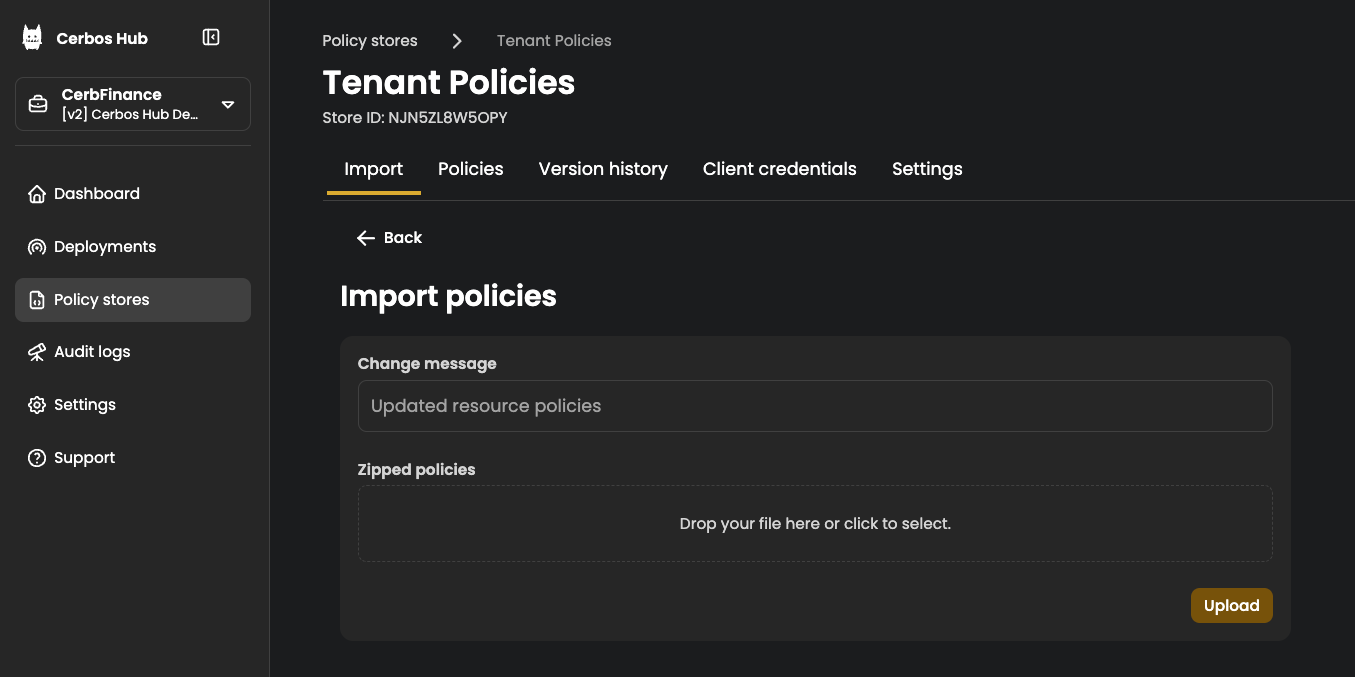
To upload policies using the browser, follow these steps:
-
Go to Cerbos Hub and sign in.
-
Inside a workspace, select Policy stores in the sidebar and open a policy store. To create a new store, select Add a new policy store.
-
Select Import in the policy store sidebar, then select Upload under Upload via browser.
-
Optionally, enter a Version message that describes the change.
-
Select a ZIP file of your policies, or drag and drop it into the Zipped policies area, then select Upload.
-
When the upload succeeds, the Policies tab of the store opens at the new store version.
| Uploading policies via the browser does a full replace of the existing policies in the store. If you want to append or update specific policies, consider using a Git repository or CI/CD pipeline instead. |
Upload results
The upload dialog reports files in the archive that cannot be stored. The file rules and limits define which files are accepted and the maximum archive size.
- Ignored files
-
Files that the file rules do not accept, such as files with an unsupported extension or a hidden path, are skipped and listed in the dialog. The remaining files are uploaded. Select Continue to open the Policies tab at the new store version.
- No policies found
-
Every file in the archive was skipped. The skipped files are listed and nothing is uploaded.
- Invalid policies
-
One or more files are not valid policies, schemas, or test files. Each file is listed with its error, nothing is uploaded, and the policies already in the store are unchanged. Fix the listed files, select Back and upload the archive again.