Cerbos Hub GitHub Integration
The Cerbos Hub GitHub integration allows you to manage your policies in a GitHub repository. This integration supports both public and private repositories, enabling you to store your policies securely and manage them using Git workflows.
Prerequisites
Before you can use the Cerbos Hub GitHub integration, you need to have the following:
-
A GitHub account.
-
A GitHub repository where you want to store your policies.
-
Permission to add a GitHub App to your repository.
Setting Up the GitHub Integration
To set up the GitHub integration, follow these steps:
-
Go to Cerbos Hub and sign in.
-
Inside a workspace, create a new policy store by clicking on "Policy Stores" in the sidebar.
-
In the Import tab, select "GitHub" as the source for your policy store.
-
Follow the prompts to authorize the Cerbos Hub to access your GitHub account.
-
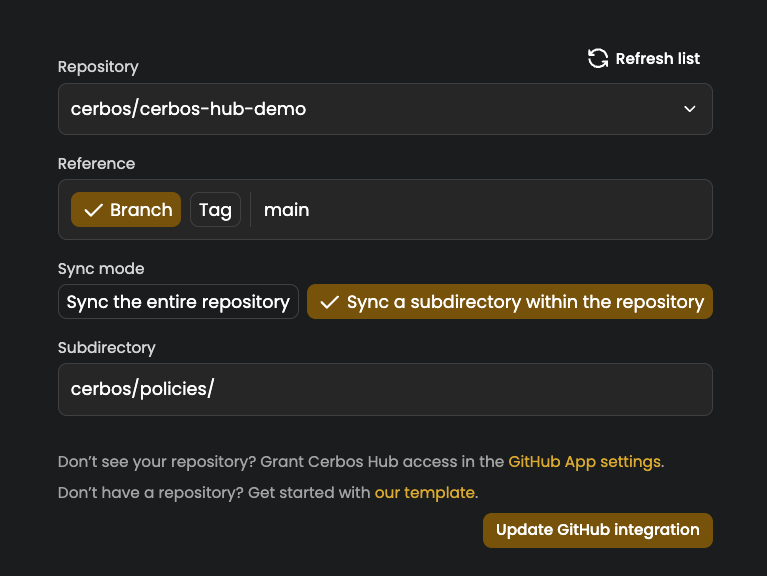
Select the repository you want to use for storing your policies.
-
Configure the branch or tag for the integration to track, and optionally a directory where your policies will be stored.
-
Click "Save" to complete the setup.
GitHub organization IP allow lists
If your GitHub organization has an IP allow list enabled, you must permit the addresses Cerbos Hub connects from. Otherwise connecting the repository fails, and any store that is already connected stops syncing, with GitHub rejecting the request with a 403 response.
The current addresses are 34.65.34.39 and 34.65.140.62. Cerbos Hub also shows them while you connect a repository — both when installing the GitHub App and when choosing the repository — so you can copy them without leaving the flow.
To manage your allow list automatically, fetch the addresses from hub.cerbos.cloud/meta, which returns them as an egressIps array:
{"egressIps":["34.65.34.39","34.65.140.62"]}| Treat that endpoint as the source of truth rather than hard-coding the addresses into your own configuration. |
| This allow list is unrelated to the IP allowlist on an ePDP rule, which controls who may download embedded PDP bundles from Cerbos Hub. |
Syncing a subdirectory
If your policies are stored in a subdirectory of your repository, you can configure the store to sync only that path. This is useful when your authorization policies are part of a larger monorepo or when you want to organize policies into separate directories.
When configuring the GitHub connection, specify the path to the directory containing your policies in the directory field. Cerbos Hub will only sync files from that directory and its subdirectories. You can also sync hidden directories (those starting with a dot) if needed.
For example, if your repository structure looks like this:
my-repo/
├── src/
├── docs/
└── policies/
    └── cerbos/
        ├── resource_policies/
        └── derived_roles/
You would set the directory to policies/cerbos to sync only the Cerbos policy files.
Using the GitHub Integration
Once the GitHub integration is set up, you can monitor and manage your policies directly in the GitHub connection tab. The integration will automatically sync changes made to the policies in your GitHub repository.
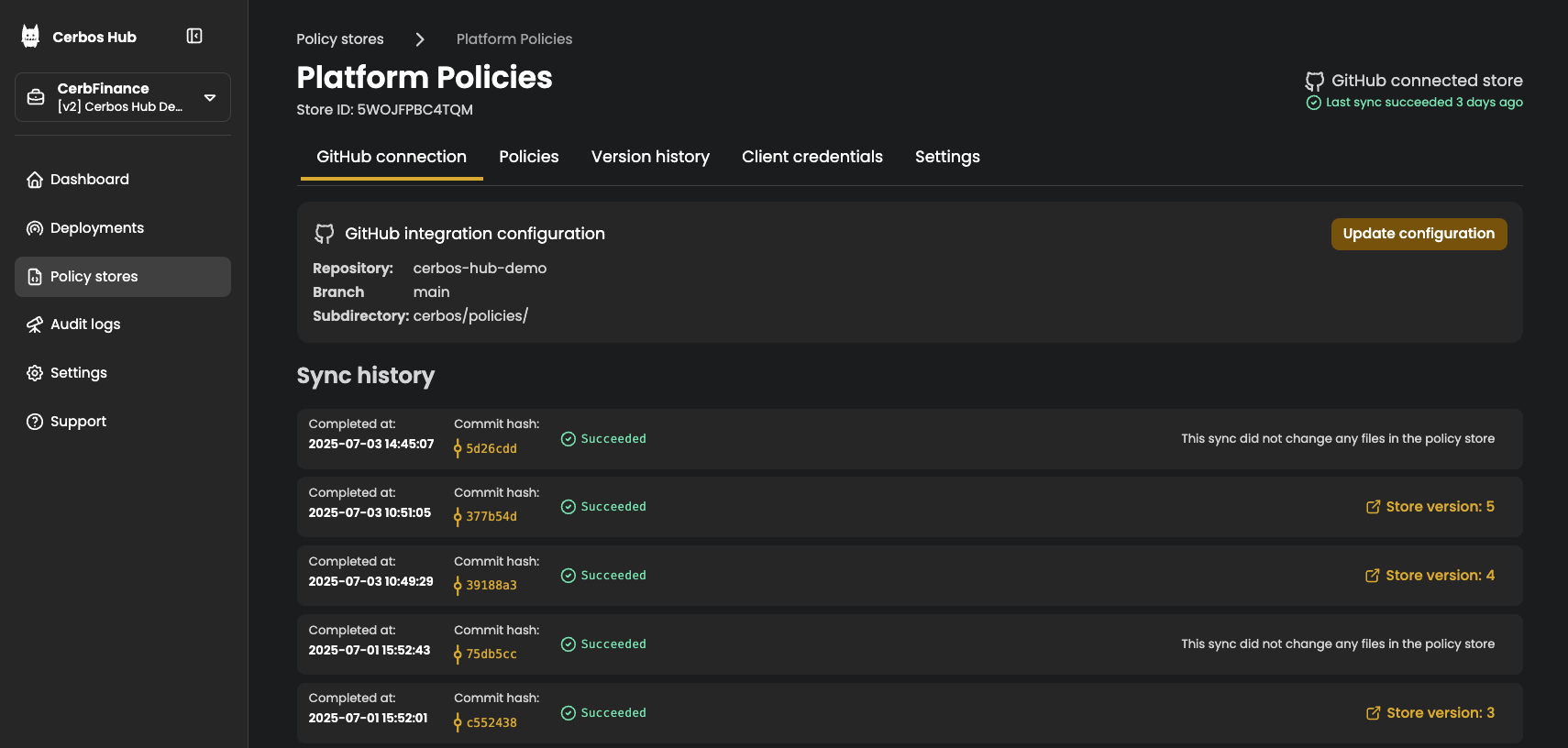
To reconfigure the GitHub integration, select Update configuration on the GitHub connection tab. You can change the repository, branch, or directory settings.
Workspace members without the Manage policy stores permission see View configuration instead. It shows the repository, the branch or tag, and whether the whole repository or a subdirectory is synced, but does not allow changes.